Setting up a Philips Smart TV properly can transform your living room into a genuine entertainment hub, but many owners never explore beyond the pre-installed apps that greet them on the home screen. Whether your set runs on Android TV or the leaner Saphi platform, understanding how to install applications correctly and manage what permissions they request is essential for both a smooth viewing experience and your household's digital safety.
What to know
- Philips Smart TVs run on either Android TV, which features the Google Play Store, or the Saphi platform, which uses a curated Philips App Gallery.
- While sideloading apps via USB or third-party managers is possible on Android TV, it carries security risks and should only be done using reputable sources.
- Users should carefully review permission requests during app installation to ensure they are appropriate for the app's functionality.
- System settings allow users to periodically audit and revoke permissions for installed applications to maintain digital privacy.
- Keeping TV software updated is essential to patch security vulnerabilities and ensure optimal device performance.
- Regular maintenance, such as deleting unused apps and clearing cache, helps prevent performance issues and improves overall TV security.
Installing applications on your philips smart tv
Accessing the App Gallery and Downloading Content
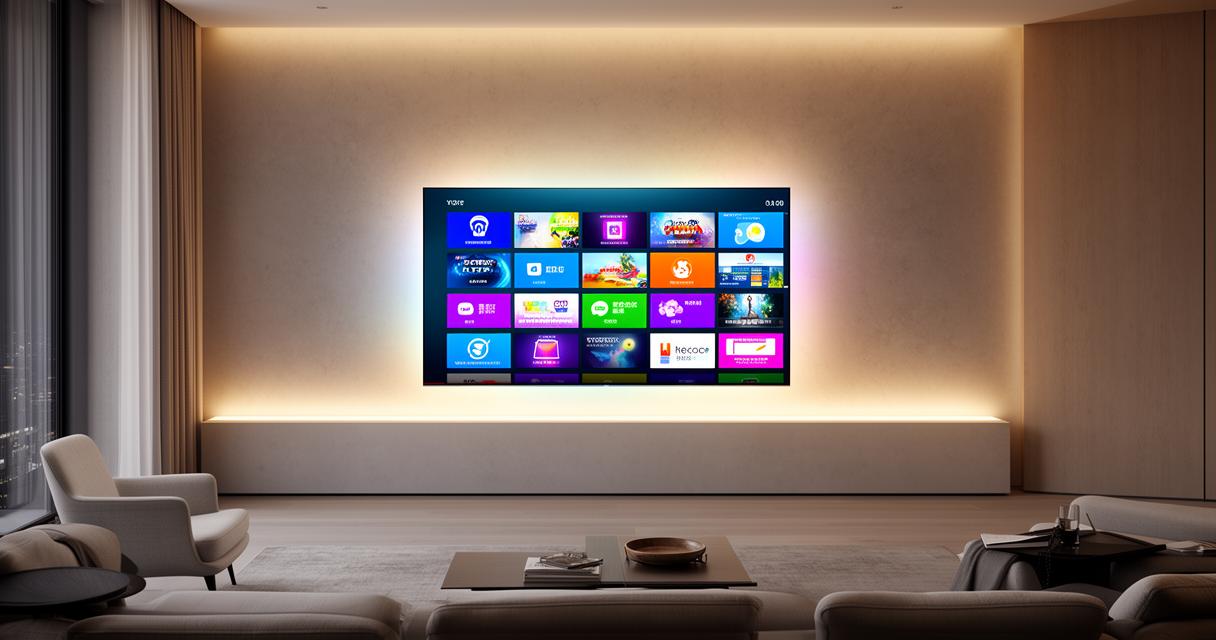
Philips televisions are built around two distinct operating systems, and knowing which one your model uses makes a real difference when it comes to installing apps. Sets running Android TV give you access to the full Google Play Store, meaning you can browse thousands of titles ranging from streaming giants like Netflix, Hulu, Amazon Prime Video, Disney+ and HBO Max, right through to music services such as Spotify, Pandora and Apple Music. To get started, you simply sign into your Google account from the settings menu, head to the Play Store icon on the home screen, and search for whatever app takes your fancy before selecting install.
If your model instead runs Saphi, the experience is a little different. This operating system was designed with simplicity and speed in mind, so rather than the sprawling Play Store, you'll find the dedicated Philips App Gallery. It carries a smaller but carefully curated selection of apps, which tends to mean quicker load times and fewer compatibility hiccups. For most households, this is more than sufficient for everyday entertainment needs, and the trade-off in variety is often worth the improved responsiveness.
Setting up third-party applications via alternative methods
Beyond the official stores, some users like to explore apps that aren't listed in either the Play Store or the App Gallery. This is where a bit of caution becomes important. Sideloading apps through USB drives or third-party file managers is technically possible on Android TV models, but it does carry more risk than sticking to verified sources. If you do go down this route, only download files from reputable websites and always check reviews or ratings beforehand. Beyond streaming and music, your Philips Smart TV can also handle a surprising range of productivity tasks, including web browsing, file management, and even smart home control, allowing you to dim the lights or check your doorbell camera without reaching for your phone. Gaming enthusiasts aren't left out either, as cloud gaming services and titles from the Play Store bring genuine console-style experiences to the big screen.
Understanding and Managing App Permissions on Philips Smart TV
Reviewing permission requests before installation
Every time you install a new application, it will typically ask for certain permissions, whether that's access to your microphone for voice search, your camera for video calls, or your network information to stream content smoothly. It's worth pausing at this stage rather than clicking through automatically. Ask yourself whether the permission being requested actually makes sense for what the app does. A weather app asking for camera access, for instance, should raise an eyebrow. Taking those few extra seconds to read what's being requested helps you avoid handing over more access than necessary.
Modifying app access settings through system preferences
Fortunately, permissions aren't set in stone once you've granted them. Within your TV's system settings, there's usually a dedicated apps or privacy section where you can review exactly what each installed application can access. From here, you're able to revoke microphone access from an app you no longer trust, or switch off location sharing for something that doesn't need it. It's a good habit to dip into this menu every so often, particularly after software updates, since new versions of apps sometimes request additional permissions that weren't part of the original installation.
Best Practices for Secure App Management on Smart Television Devices
Recognising potentially harmful applications and security threats
Smart TVs have become increasingly attractive targets for those looking to exploit weak security, so it pays to stay alert. Warning signs include apps that weren't downloaded from official sources, unexpected pop-ups, or noticeably sluggish performance after a new installation. If an app suddenly starts behaving oddly, freezing constantly, or draining your storage far more than expected, it's worth uninstalling it straight away and checking Philips' official support pages for guidance. Keeping your software updates current is one of the simplest ways to patch security gaps before they become a problem.
Maintaining privacy through regular permission audits
Just as you might review the apps on your smartphone occasionally, giving your Philips Smart TV the same treatment is a sensible habit. Set a reminder every couple of months to go through your installed apps, delete anything you no longer use, and double check permissions on the ones you keep. If you run into persistent glitches, standard troubleshooting steps such as restarting the app or the television itself, clearing cache and data, or checking for pending updates will resolve most issues. When problems persist despite these efforts, a factory reset often does the trick, though this should be a last resort given it wipes your personalised settings. Philips' customer support team remains available for trickier situations, including remote control issues or persistent connectivity troubles that basic troubleshooting can't fix.
Beyond the world of televisions, Philips continues to build its reputation across personal care, oral healthcare and household appliances too, offering everything from electric shavers and toothbrushes to kitchen gadgets and Philips Avent products for mother and child care. The brand's commitment to sustainability, including refurbished ranges and recycling initiatives, alongside a generous 2-year warranty and 30-day return policy, reflects a broader philosophy that extends well beyond the smart TV itself, encouraging customers to think about longevity and responsible use across every product they bring into their home.