Getting to grips with your smartphone's speaker settings can transform how you experience calls, media and everyday notifications. Whether you're struggling to hear during a call, trying to connect a wireless speaker, or exploring the wealth of accessibility features built into modern devices, this guide walks through everything you need to know to get the most from your phone's audio capabilities.
The essentials
- Users can easily activate the speaker during phone calls by tapping the speaker icon on their screen, or by using screen readers to locate the control if they have visual impairments.
- Fine-tuning audio quality involves using physical buttons, on-screen volume sliders, and settings to manage separate levels for calls, media, and notifications.
- Troubleshooting common audio issues often involves checking Bluetooth connections, app permissions, and ensuring accessibility features haven't unintentionally altered sound output.
- Connecting external Bluetooth speakers allows for a richer audio experience and can be managed efficiently using voice assistants for hands-free configuration.
- Modern smartphones offer robust accessibility tools like the TalkBack screen reader, Select to Speak, and Audio Description to help users navigate and enjoy media content.
- Advanced accessibility options include visual cues like flashing notifications, captioning for video content, and customized interfaces for users with specific needs.
Essential methods for enabling your mobile device's built-in speaker system
Activating the Speaker During Phone Calls on iPhone and Android Devices
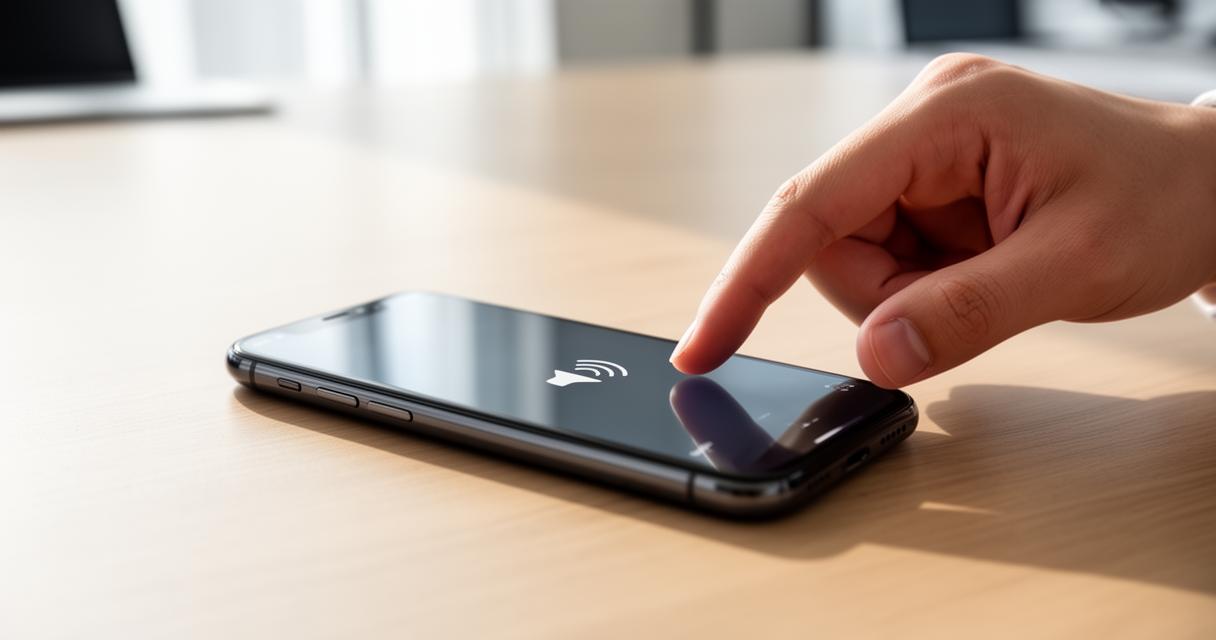
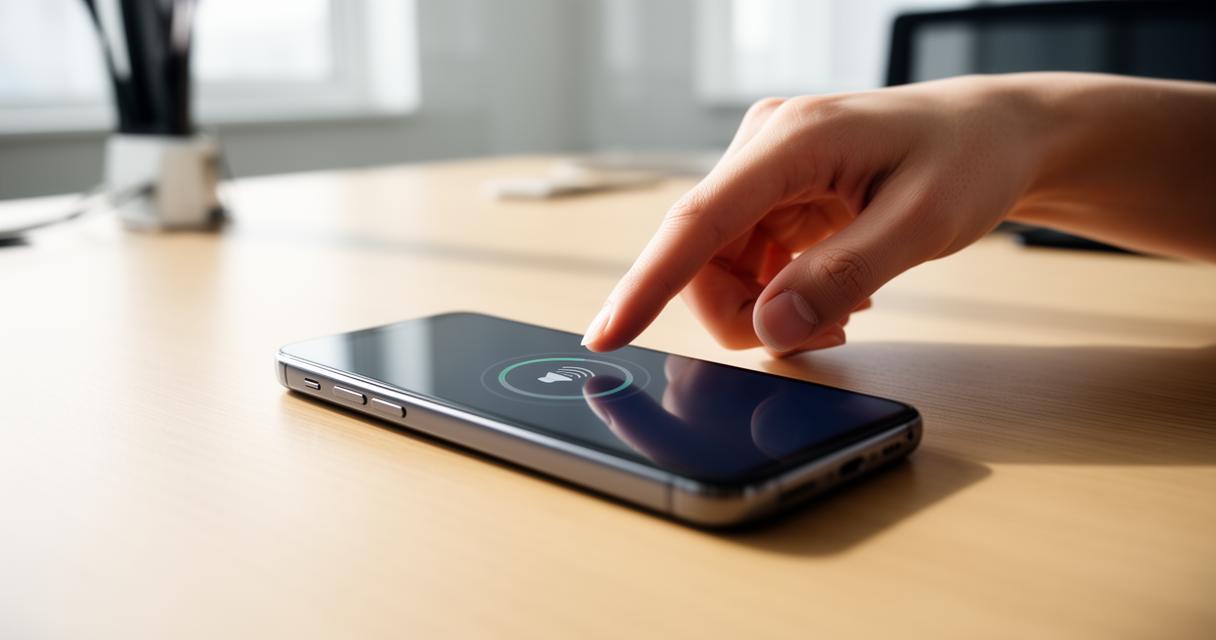
Switching on the speaker during a call is one of those things that seems obvious until you're fumbling with your phone trying to find the right button. On both iPhone and Android handsets, you'll typically see a speaker icon displayed on the call screen itself, and a simple tap turns hands-free audio on or off. This becomes particularly useful when you need to set the phone down, share a conversation with someone nearby, or simply prefer not to hold the device against your ear for extended periods. For those with vision impairment, locating this icon can be trickier, which is where a screen reader comes into its own, announcing each button as your finger moves across the screen so you can identify the speaker control without needing to see it clearly.
Adjusting Volume Controls and Audio Output Settings for Optimal Sound Quality
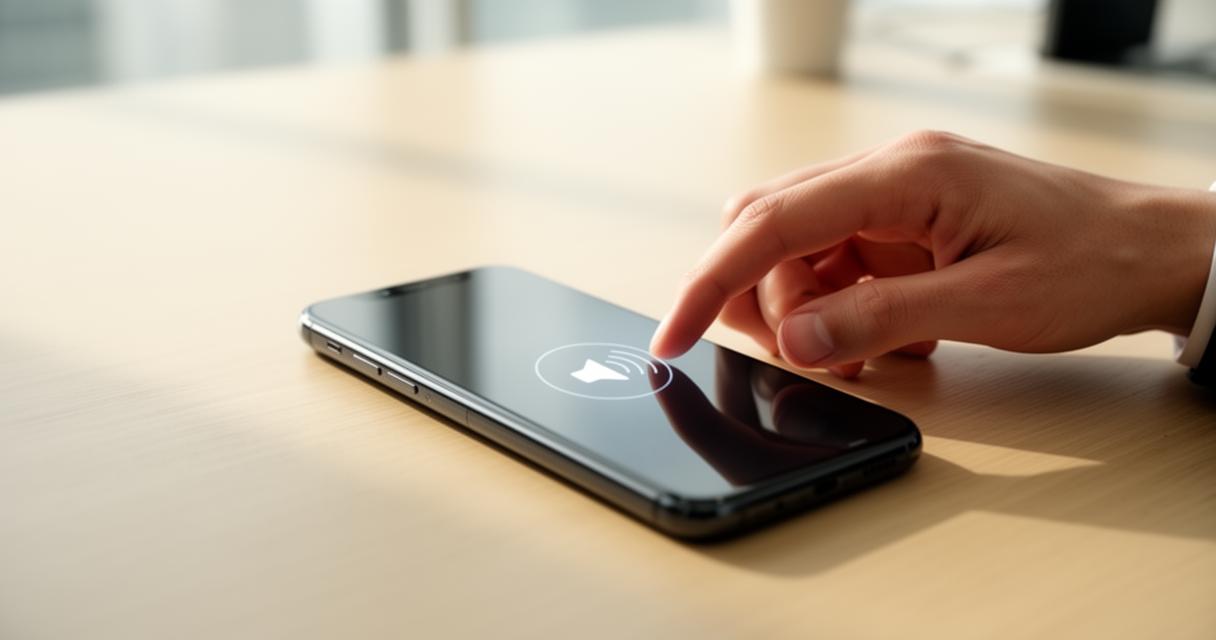
Once the speaker is active, getting the volume right makes all the difference. The physical buttons on the side of your device remain the quickest way to adjust sound levels, though many phones also offer on-screen sliders within the settings menu for finer control. It's worth exploring the display settings and audio menus together, since some devices allow you to set separate volume levels for calls, media and alerts. If you find yourself straining to hear certain frequencies, checking whether mono audio is available can help, as this setting combines both stereo channels into one, ensuring nothing is missed if you have hearing loss in one ear.
Troubleshooting common speaker malfunctions and audio connectivity challenges
Resolving sound output problems through device settings and application permissions
When sound suddenly stops working, the culprit is often something simple rather than a hardware fault. Checking that the correct output device is selected within your settings, confirming that individual apps have the necessary permissions, and restarting the phone can resolve a surprising number of issues. Sometimes a stray Bluetooth connection lingers in the background, silently redirecting audio away from the built-in speaker. It's also sensible to check for accidental accessibility changes, since features like Voice Access or Voice Control can sometimes alter how audio behaves if activated unintentionally. Working through these settings methodically, rather than assuming the worst, usually gets things back on track.
Connecting and Configuring Bluetooth Wireless Speakers for Enhanced Audio Experience
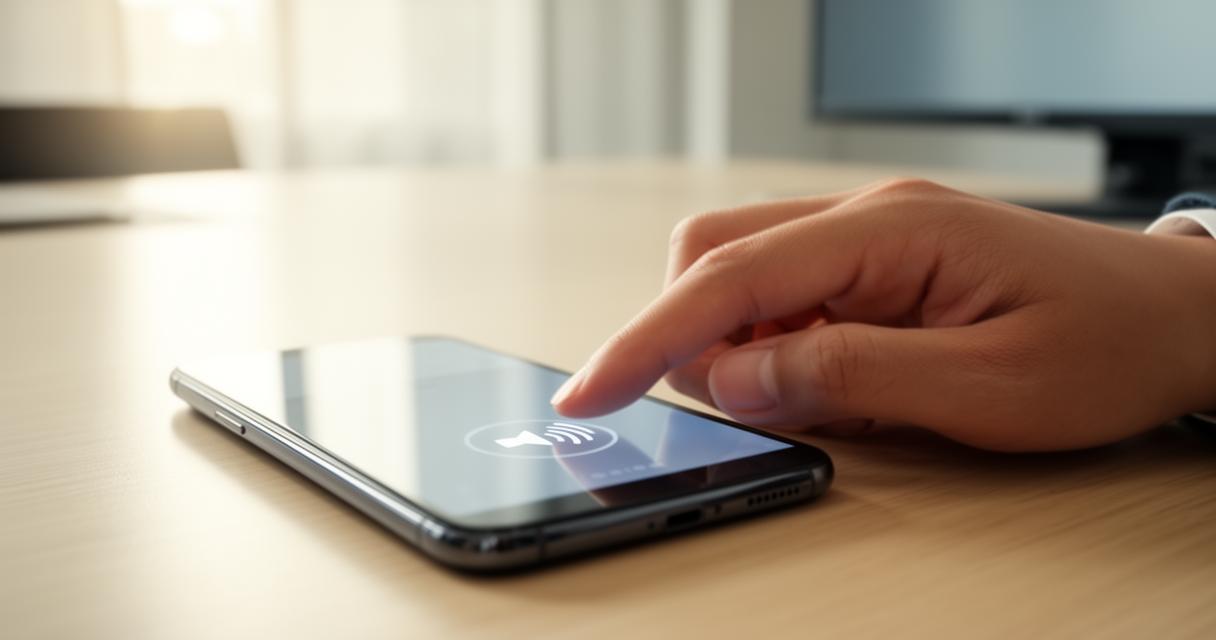
For richer sound, pairing your phone with a Bluetooth speaker opens up a whole new listening experience. The process generally involves switching on the external speaker, entering pairing mode, and then selecting it from the list of available devices within your phone's Bluetooth menu. Once connected, audio from calls, music and videos routes through the speaker automatically, giving a fuller, more hands-free experience. This pairing process benefits enormously from voice commands too, and tools such as Google Assistant can help initiate connections without needing to navigate menus manually, a feature particularly valued by those who prefer a hands-free approach to managing their device.
Accessibility Features and Advanced Audio Options for Enhanced User Experience
Exploring assistive audio tools and hearing accommodation settings
Modern smartphones are packed with tools designed to make audio genuinely accessible to everyone. Google's TalkBack screen reader reads aloud whatever is on screen using gestures, allowing blind and partially sighted users to navigate confidently without needing to see the display at all. Alongside this, Select to Speak lets users tap on specific text or images to have them described aloud, while Audio Description announces what's happening visually within compatible films and shows. The Lookout app takes things further by using the camera to identify text, objects and even currency in real time, proving invaluable for anyone managing daily tasks independently. It's worth noting that Google Assistant is set to be replaced by Google Gemini in 2026, which promises even more natural, conversational support for hands-free tasks. Software such as Synapptic also enhances accessibility on Android devices, offering a simplified interface alongside updated assistive technologies tailored for older users or those newer to smartphones.
Customising sound profiles and speaker performance across different applications
Beyond the basics, there's a wealth of customisation available for those willing to explore the accessibility menu. Adjusting text size, switching to a dark theme, or enabling colour inversion can ease visual strain considerably, while captions ensure video content remains accessible regardless of hearing ability. Notification alerts can be paired with flashing lights for those who might miss an audible cue, and touch gestures combined with voice control mean the entire device can be operated without ever touching the screen. On Pixel devices, the Magnifier app and Guided Frame feature assist with photography and camera magnification, helping users compose shots even with limited vision. Features like one-handed mode, custom controls and adjustable touch and hold delays further tailor the experience, while guided access keeps a device locked to a single app, which can be reassuring for younger users or those needing a distraction-free environment.
For students who rely on assistive technology, support doesn't need to stop at the settings menu. Funding for specialist equipment can often be accessed through the Disabled Students' Allowance, commonly known as DSA, with school or disability staff able to guide the application process. Beyond education, organisations offering support for adults, children and families, alongside dedicated guide dog services, provide a broader safety net for anyone navigating life with a vision impairment. Many of these organisations also run a Teemill shop, where proceeds from merchandise sales go directly towards funding further support and services. Whatever your starting point, taking the time to explore your device's accessibility features and adjust the settings to suit your needs can make an enormous difference to daily life, turning a standard smartphone into a genuinely personalised, accessible tool.