Choosing the right mouse can make or break your productivity when spending long hours inside AutoCAD. Whether you're rotating complex 3D models, snapping precise lines, or navigating layered drawings, the humble mouse becomes your most important tool. After testing hundreds of devices across various brands, we've narrowed down what truly matters for CAD professionals and put together this guide to help you find a pointer that keeps pace with your workflow.
Key takeaways
- The right mouse is crucial for AutoCAD productivity, significantly impacting workflow efficiency during complex 3D modelling and drafting tasks.
- Programmable buttons allow professionals to assign common AutoCAD shortcuts, reducing reliance on the keyboard and speeding up design processes.
- Ergonomic design and precision tracking are essential to minimize wrist strain and ensure accurate cursor movement during long work sessions.
- Premium options like the Logitech MX Master series and 3D Connexion mice offer specialized features, while gaming-oriented peripherals provide excellent sensor accuracy and performance.
- Budget-conscious designers can find high-quality alternatives from brands like Razer, Corsair, and SteelSeries that offer professional-grade precision without a premium price tag.
- Optimizing a mouse through button configuration and regular maintenance, such as cleaning sensors and updating firmware, is vital for long-term reliability and performance.
Essential Features to Consider When Choosing a Mouse for AutoCAD Work
Not all mice are created equal, and this becomes glaringly obvious once you start working with demanding design software. A standard office mouse might handle basic tasks, but AutoCAD users need something that offers greater control, comfort, and customisation. The right peripheral should feel like an extension of your hand rather than an obstacle you're fighting against during a marathon drafting session.
Programmable Buttons and Customisation Options for Enhanced Workflow
One of the biggest productivity boosters comes from programmable buttons. Mice with multiple customisable buttons let you assign shortcuts for common AutoCAD commands, meaning you spend less time reaching for the keyboard and more time actually drawing. Brands like Logitech and Razer have built entire product lines around this concept, and models such as the Logitech G PRO X2 SUPERSTRIKE demonstrate how gaming-oriented hardware can cross over nicely into professional design work. Having quick access to zoom, pan, or your favourite AutoCAD aliases directly from your mouse genuinely transforms your CAD workflow.
Ergonomic Design and Precision Tracking for Extended Drawing Sessions
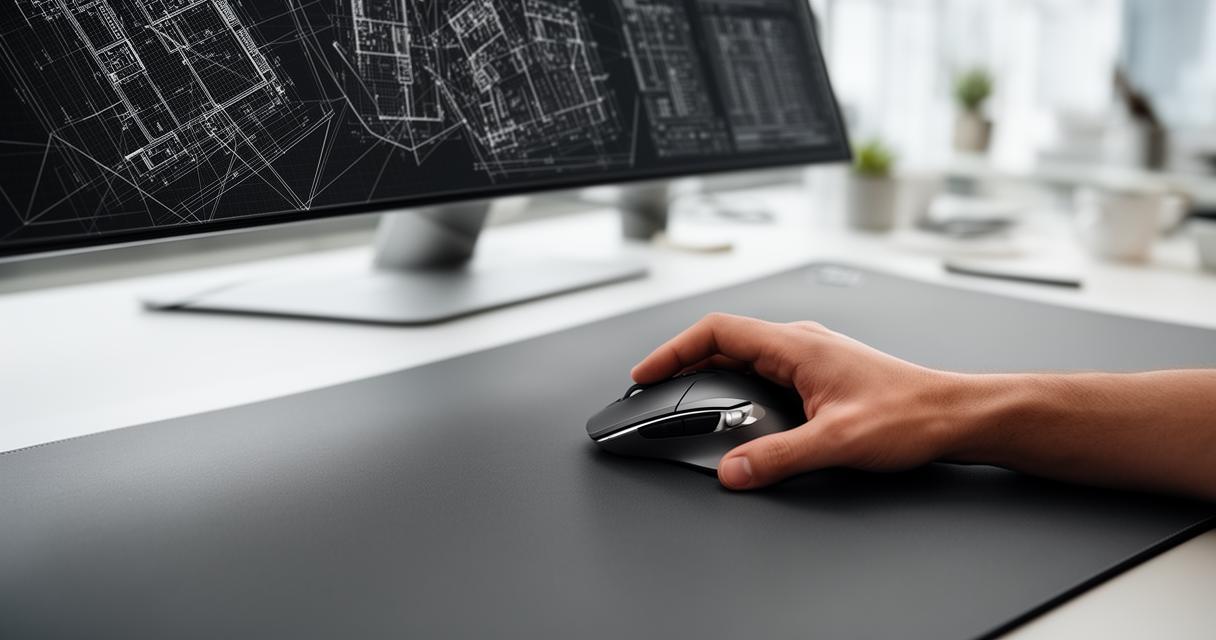
Comfort matters just as much as functionality, particularly if you're at your desk for eight hours or more. An ergonomic design reduces strain on your wrist and forearm, which is essential when you're making thousands of tiny cursor movements throughout the day. Precision tracking sensors also play a huge role here, ensuring that every click and drag translates accurately onto your screen without frustrating lag or drift. This combination of comfort and accuracy is precisely what separates a decent mouse from a truly great one for design software.
Top-Rated Mice for AutoCAD Professionals in 2024
After buying and testing 407 different mice, our team has identified a handful of standout options that consistently perform well for CAD applications. These recommendations span both premium and budget categories, so there's something suitable regardless of your spending limit.
Premium Wireless Options for 3D Modelling and CAD Applications
For those willing to invest in top-tier gear, the Logitech MX Master 4 remains a favourite among designers, building on the well-loved legacy of the Logitech MX Master 3. Its refined scroll wheel and thoughtful button layout make it a joy to use for intricate 3D modelling tasks. Meanwhile, the 3D Connexion CAD Mouse Pro Wireless earns praise for its generous size, though it's worth noting it lacks USB-C for charging, which some users may find inconvenient compared to newer options on the market.
If ergonomics are your top priority, the 3D Connexion CAD Mouse Compact Wireless deserves a mention for its thoughtful shape and impressive battery life. Similarly, the Logitech MX Ergo Trackball Mouse is worth considering since trackball mice significantly reduce wrist movement, a real bonus for anyone prone to repetitive strain issues. For users who prefer an upright hand position, the Logitech MX Vertical Wireless Mouse offers a genuinely different way of working that many find far more comfortable over long sessions.
Budget-friendly alternatives that don't compromise on performance
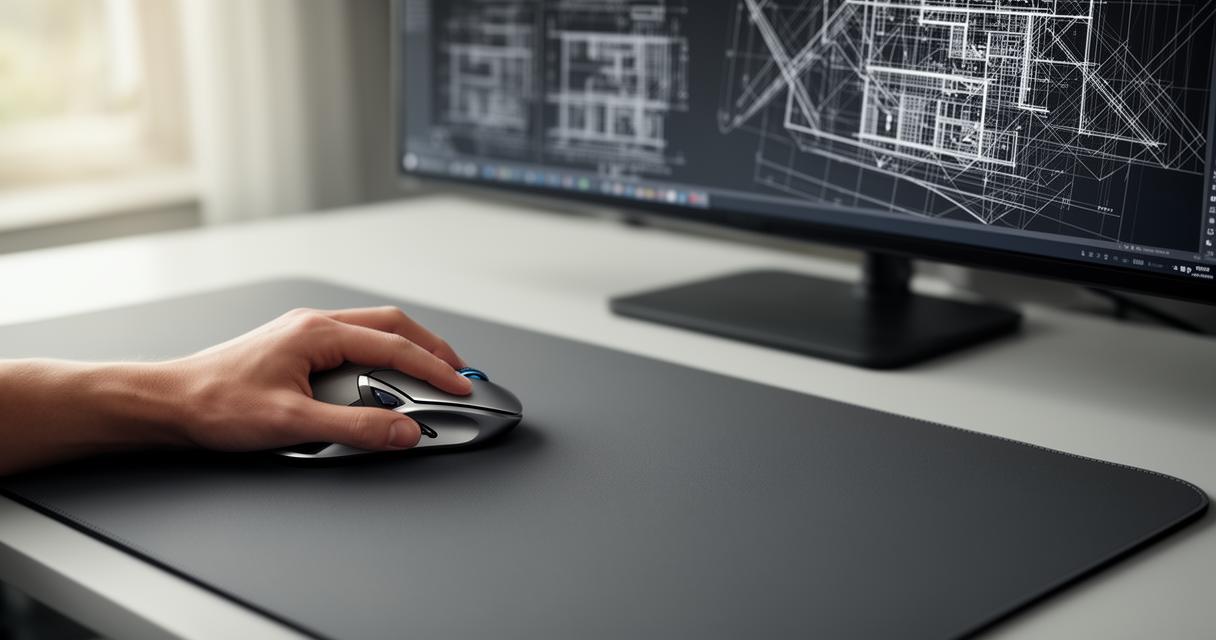
Not everyone needs to spend a fortune to get solid performance. Options from Corsair, SteelSeries, MCHOSE, Endgame Gear, Keychron, and Pulsar offer surprisingly capable alternatives without the premium price tag. The Logitech G PRO X SUPERLIGHT 2 and Logitech G502 X are worth a look too, bringing gaming-grade precision to a design context at a more accessible cost. Even the Razer Viper V4 Pro and Razer DeathAdder V4 Pro, while marketed toward gamers, offer sensor accuracy and build quality that translate well into professional CAD environments.
- Logitech MX Master 4 – premium ergonomics and precision
- 3D Connexion CAD Mouse Compact Wireless – excellent battery life
- Logitech MX Ergo Trackball Mouse – reduced wrist strain
- Razer DeathAdder V4 Pro – budget-conscious yet accurate
Optimising Your AutoCAD Experience with the Right Mouse Setup
Buying a great mouse is only half the equation. Configuring it properly and maintaining it over time will ensure you get the most out of your investment and keep your workflow smooth for years to come.
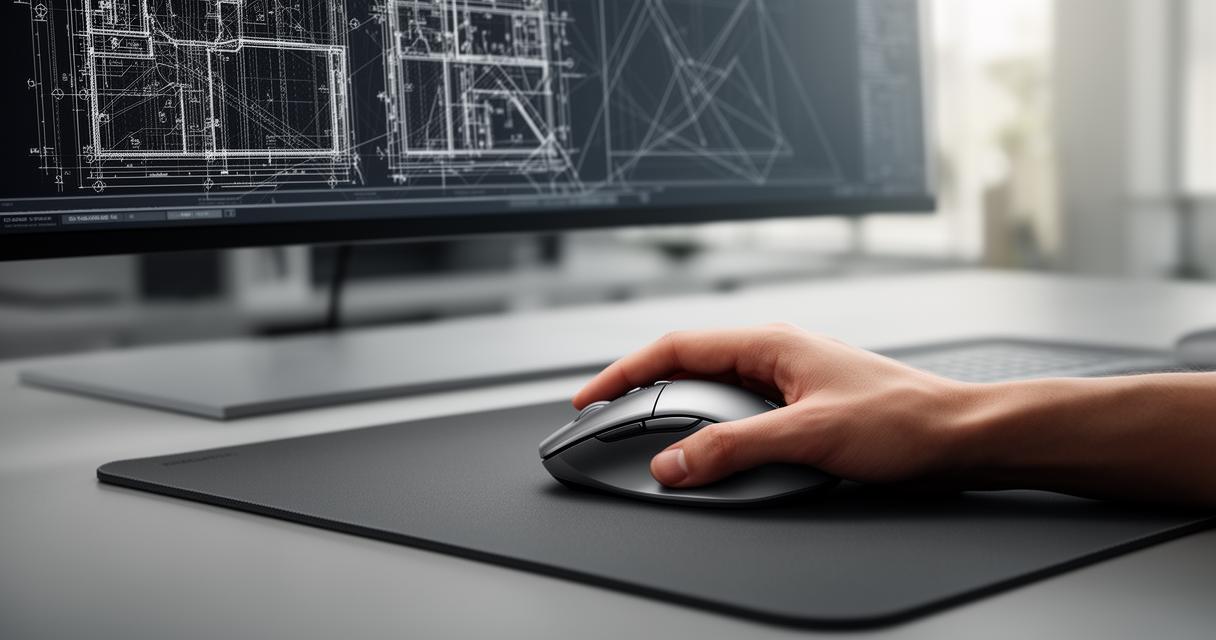
Configuring button assignments for common autocad commands
Take the time to set up your programmable buttons to match frequently used commands. If you haven't already, learning how to create AutoCAD aliases quickly will pair beautifully with a customised mouse, letting you fly through commands without ever touching the ribbon menu. Many professionals also find it useful to adopt a consistent AutoCAD folder structure alongside their mouse setup, saving considerable time when switching between projects. Small tweaks like inserting a title block like a professional or knowing a few tricks for reviewing and comparing PDFs instantly can complement your improved mouse configuration nicely.
Maintaining Your CAD Mouse for Longevity and Consistent Accuracy
Regular cleaning of the sensor and scroll wheel prevents tracking issues down the line, and keeping firmware updated ensures your device continues performing as intended. Battery care matters too, particularly for wireless models, so try to avoid letting the battery drain completely on a regular basis. With proper maintenance, a quality mouse should serve you reliably through countless drafting sessions.
As design software continues to evolve, some have wondered whether AI is replacing designers under 40, but the consensus among professionals remains that good tools, including the right mouse, still make a measurable difference in daily productivity. We're genuinely excited about continuing to test new releases and expanding this guide, so feel free to share your own experiences and recommendations as you explore what works best for your own CAD workflow.